At a A Glance
- Start with a Storyboard
- Sourcing Footage using Artlist
- Creating an Image with Midjourney
- Animating Images using Runway
- Creating Custom Music using Suno
- Pulling it all Together using Adobe
Introduction
Sports creators today aren’t just storytellers; they’re full-stack production studios powered by AI. The tools available now let a single creator do what used to take an entire creative team: sourcing b-roll, animating still images, generating music, cutting scenes, designing motion graphics, and publishing high-impact reels in a single day.
So much better than days gone by.
In this edition, we'll walk through how to quickly create a short Instagram reel that highlights the PWHL. The subject of the reel will illustrate an international flavor to the league, the energy of the people who attend the PWHL games, and the potential for one of their top players to have another breakout year. It's a demo story, so we're focused less on the storyline and more about how you leverage AI and workflow principles in the design and production process.
We're going to create an Instagram reel using our Storytelling Framework, which you can see below.
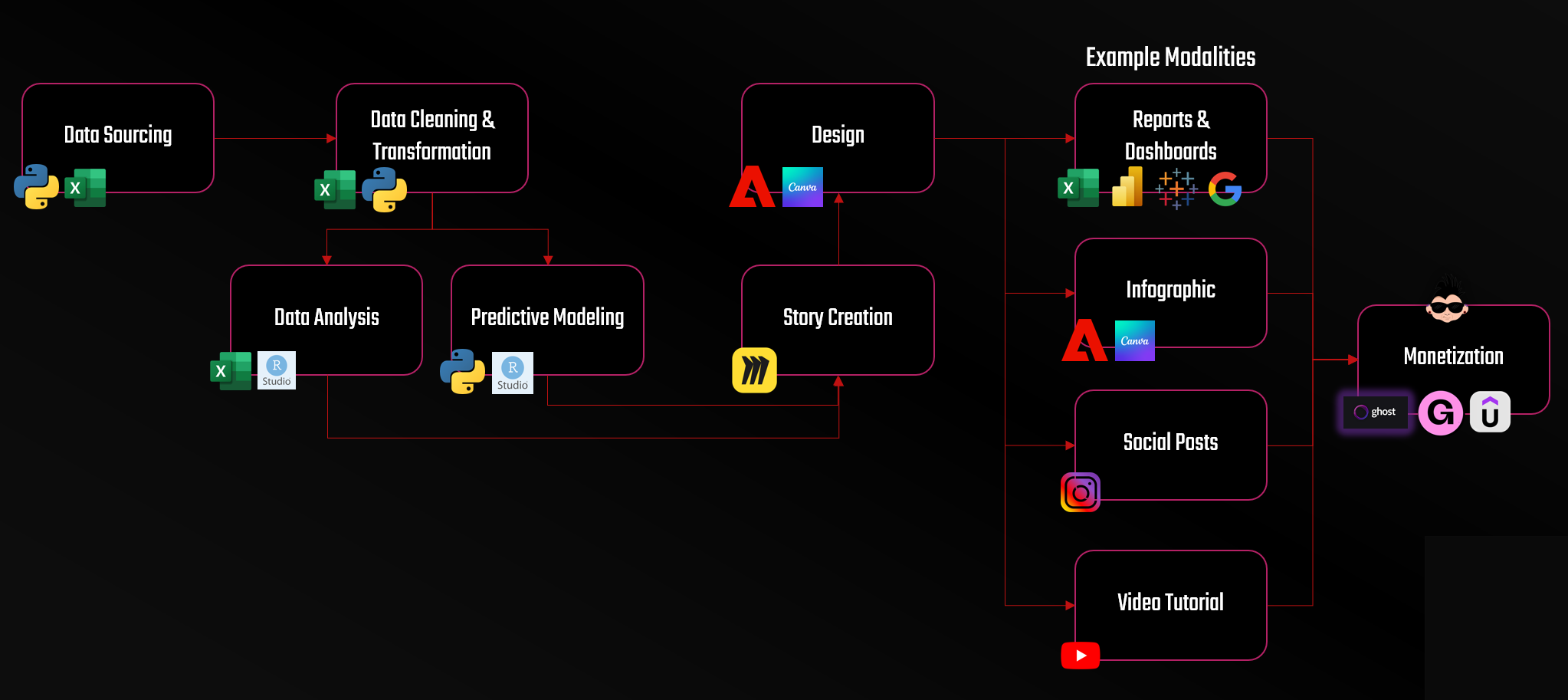
We want to focus on different AI tools within the content creation process, so we'll focus on the Design box. We'll specifically show you how to create an Instagram reel integrating the following AI tools:
- Artlist to source cinematic b-roll
- Midjourney and Runway to design and animate custom images
- Suno to create a custom soundtrack built for sports energy
- Adobe After Effects & Premiere Pro to bring it all together with graphics, beats, and motion
Let’s break down the above workflow, so you can recreate it, adapt it, and eventually make this a template for every sports reel you produce.
Don't have a lot of time to read? Then check out our quick-hit video below.
Start with a Storyboard
Before touching any tool, you first define the story. A sports reel shouldn't be just random clips and motion graphics; it’s a narrative delivered in 15-30 seconds. For our demo, we'll use the fast-growing PWHL (Women's Professional Hockey League) and do a spotlight on the Boston Fleet and Susanna Tapani.
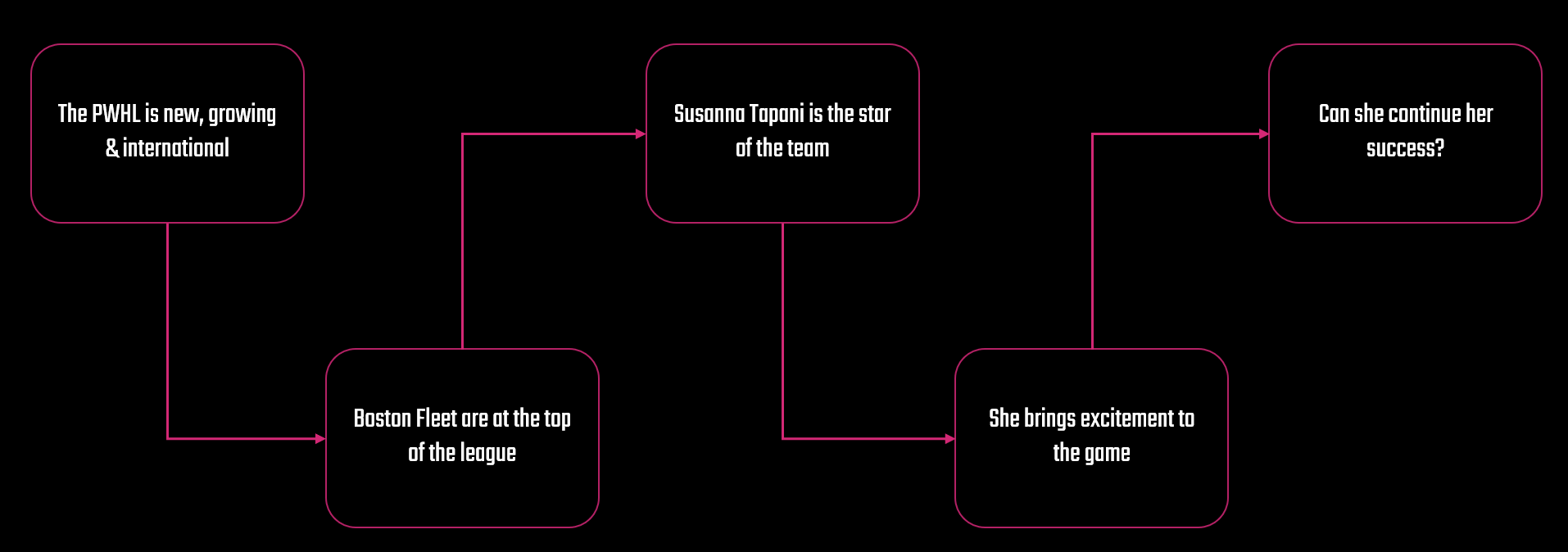
We'll keep the storyline simple and have five "beats":
- League: The PWHL is a new and growing league with international players.
- City: The Fleet are in a major sports franchise city – Boston.
- Team: The team is a strong and currently at the top of the league.
- Player: Susanna Tapani is one of their point-production leaders.
- Moment: Tapani's performance in her last game.
This is a demo story, so there's nothing particularly controversial about the above; it's more tuned to a feature story on a player.
Your reel should answer one question:
"Can Tapani continue her success?"
Mapped out on a slide, the beats are as follows.
Now, the above storyline was pretty simple and non-controversial. You might find your own hooks, such as:
- Tapani is Finnish (and doing well in the league).
- Feature the top 3 players of the Fleet to show multi-player strength.
- Focus on the city of Boston and how welcoming it's been to the PWHL.
Further, for a more elaborate story, you might use a mood board, storyboard or even script to lay out the story. We find that simple is better for quick-twitch reels (especially when they have an average half-life of 3 days).
Be sure to also check out our Instagram site for regular updates and posts on our F1 coverage.
Sourcing Footage using Artlist
Artlist is a great tool for sourcing footage, music, sounds, and creating AI images and animations. We mainly use it for sourcing stock footage, images and music so we can quickly create the backdrop for a story. For this story, we'll source some footage of Boston and Finland to help set the initial context in the reel.
When searching for footage, you don't need prompts; the search is a simple keyword search. For example:
- Boston skyline
- Boston winter
- Turku, Finland
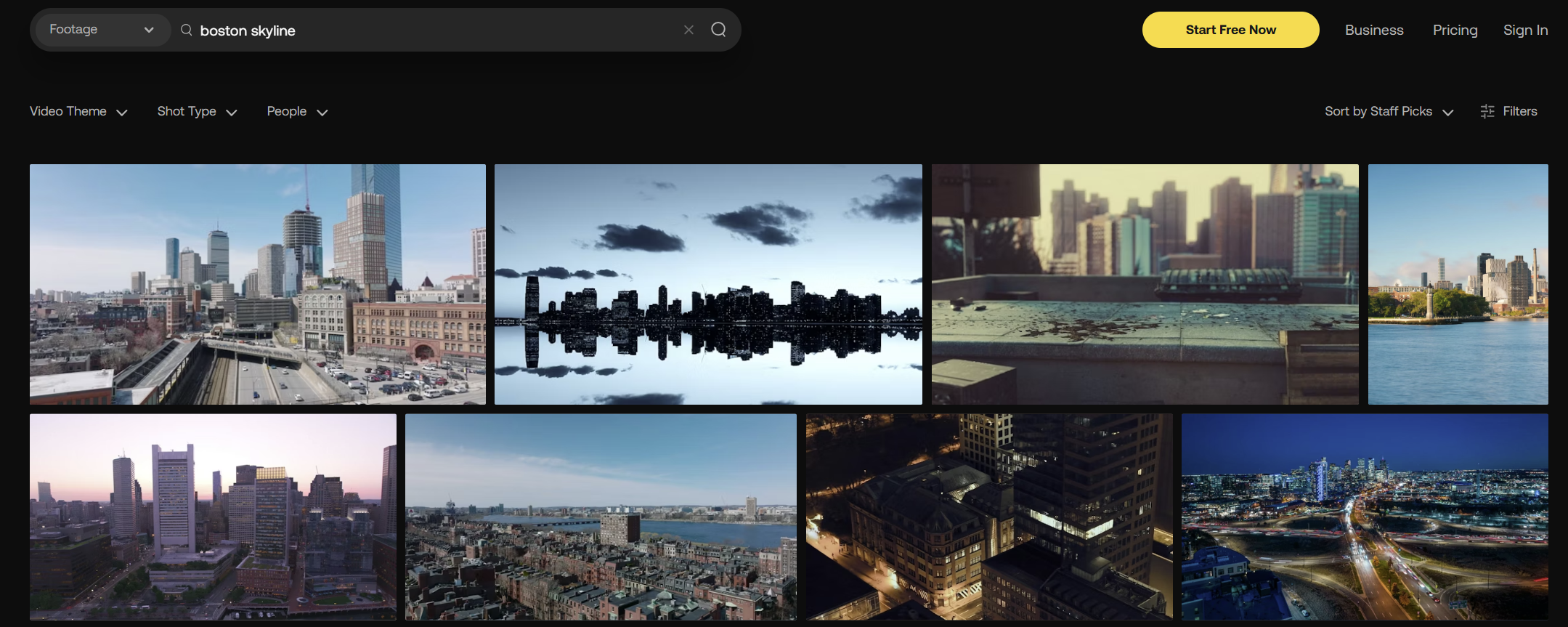
Note that when you're searching for European cities, Artlist will return cities that are similar to, say, Finland. So, be sure to check whether the cityscapes are actually the city you're searching for and not just a likeness.
After you've searched for and downloaded the clips, review them for the type of look and feel you want to include in your reel.
- Pick 4–6 clips total. In a 10-15 second reel, we'll generally use 3-4 clips maximum.
- Try and keep the color tones consistent, for example, winter blues, neutrals, or warm golds.
- Prioritize motion in the frames (e.g., passing cars, pans, crowd movement).
This is the professional touch. Even if you’re using AI animation for the hero moment later, real-world footage grounds the reel and broadens appeal. It makes the reel feel bigger than a highlights clip—it becomes a cultural story.
Creating an Image with Midjourney
We typically use a licensed sports photography service, so when we use athletes in our reels we're not exposing ourselves legally. However, we also like to use Midjourney when designing fun or non-athlete specific images.
For this image, we're going to have some fun. We'll create the image of a calm, collect professional woman on one side of the image and the complete opposite of the 'fan in full context' on the other. The end result will be the below.
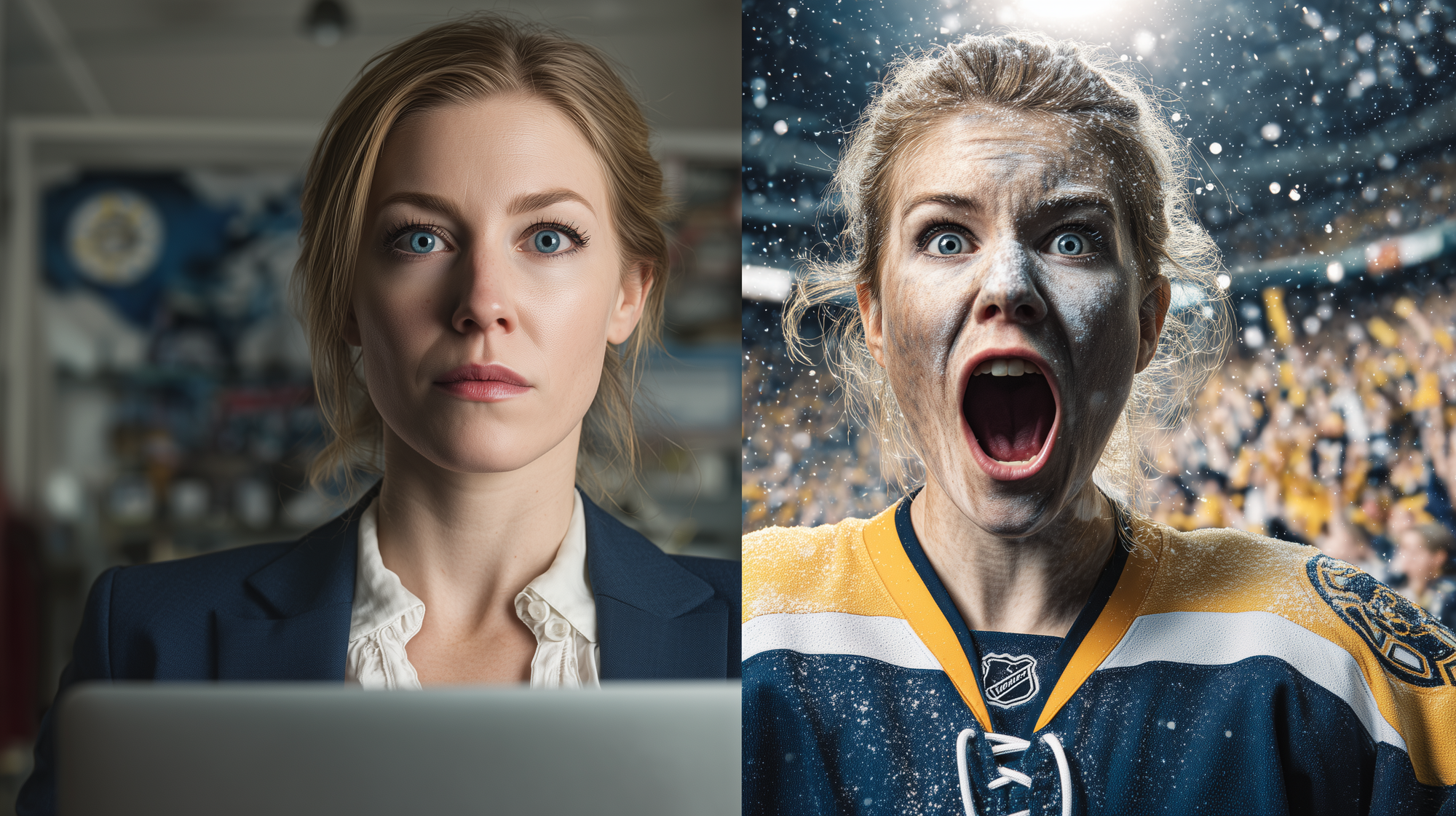
The prompt for the above is as follows:
"Create a portrait of the same woman shown in two contrasting identities. The left side: a professional female office worker, polished appearance, wearing business attire (blouse and blazer), holding a laptop or paperwork, clean corporate office environment, neutral lighting, calm expression. Right side: the same woman transformed into an intense Boston Fleet hockey superfan inside TD Garden, face painted in navy and gold, wearing a Boston Fleet jersey, hair slightly messy from cheering, screaming with excitement, hands raised or holding a rally towel, energetic arena lights, crowd blur, confetti or motion blur for atmosphere. Both sides should have full face to shoulders, and the difference should reflect polar opposites. Strong visual contrast between calm professionalism and explosive fan passion. Cinematic lighting, crisp detail, 8k resolution, hyper-realistic textures, bold sports energy."
You can generate 4–8 variations, upscale your favorite, and download it in the highest resolution.
At this point, you have the choice of animating the image. Midjourney has the ability to animate your image, so you can use the Auto function under Animate Image to see how this works.
Alternatively, you can import the image into Runway to compare the results.
Want to learn how to analyze data and build amazing data stories? Join Data Punk Media today!
Animating Images Using Runway
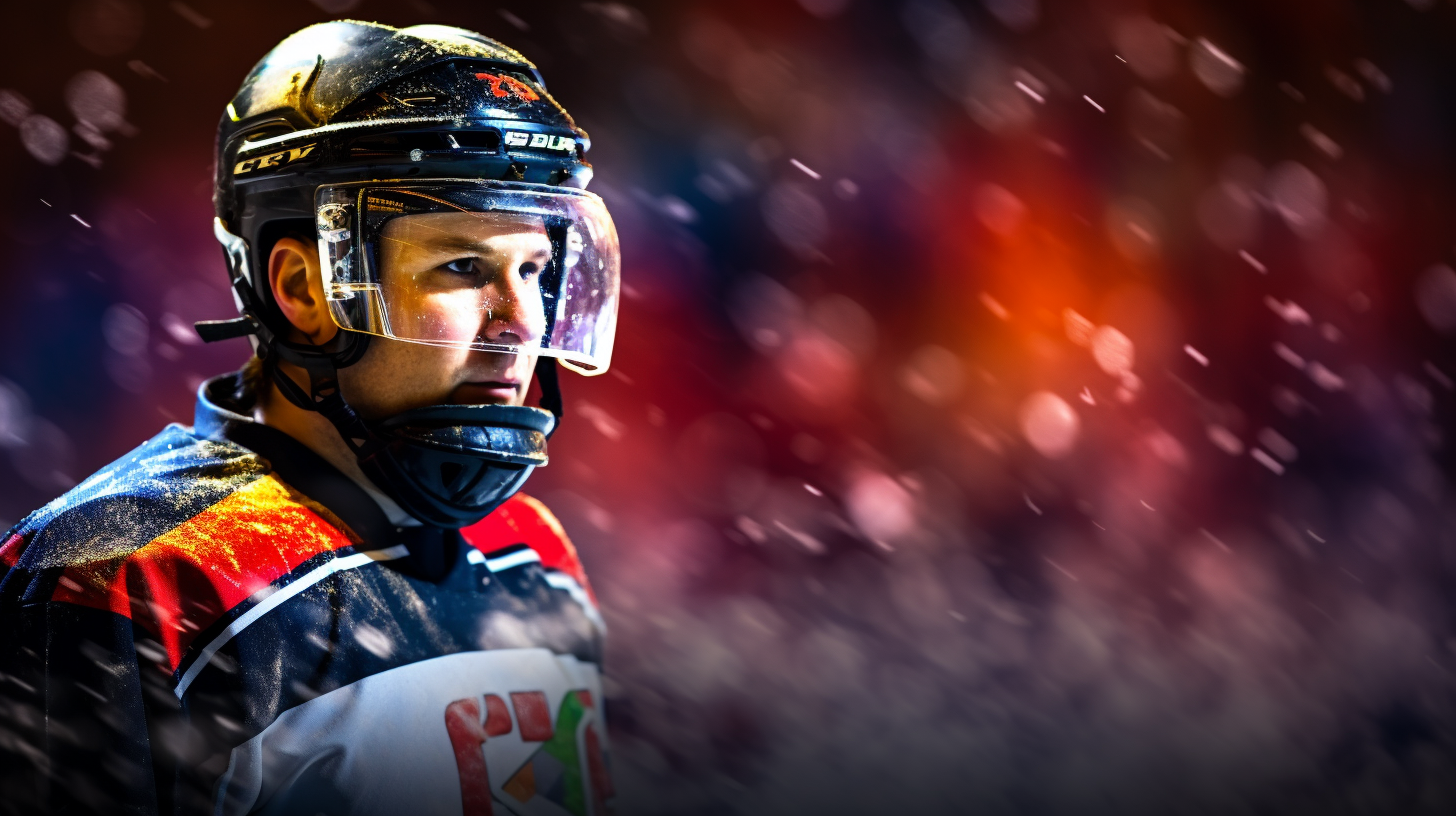
We find that AI is generally pretty decent at animating certain types of images, but often times sports images require editing, touch-up and upscaling – especially hockey. For example, I'm not too familiar with any hockey players that wear such an odd chin strap like was created in the below AI-generated image.
Skylines are in the 'easier-to-animate' column. For example, Turku is a decent-sized city of roughly 200,000 people; however, we couldn't find a really good video of Turku on Artlist. So, for the sake of time we acquired an image and decided to go the animate route using AI.
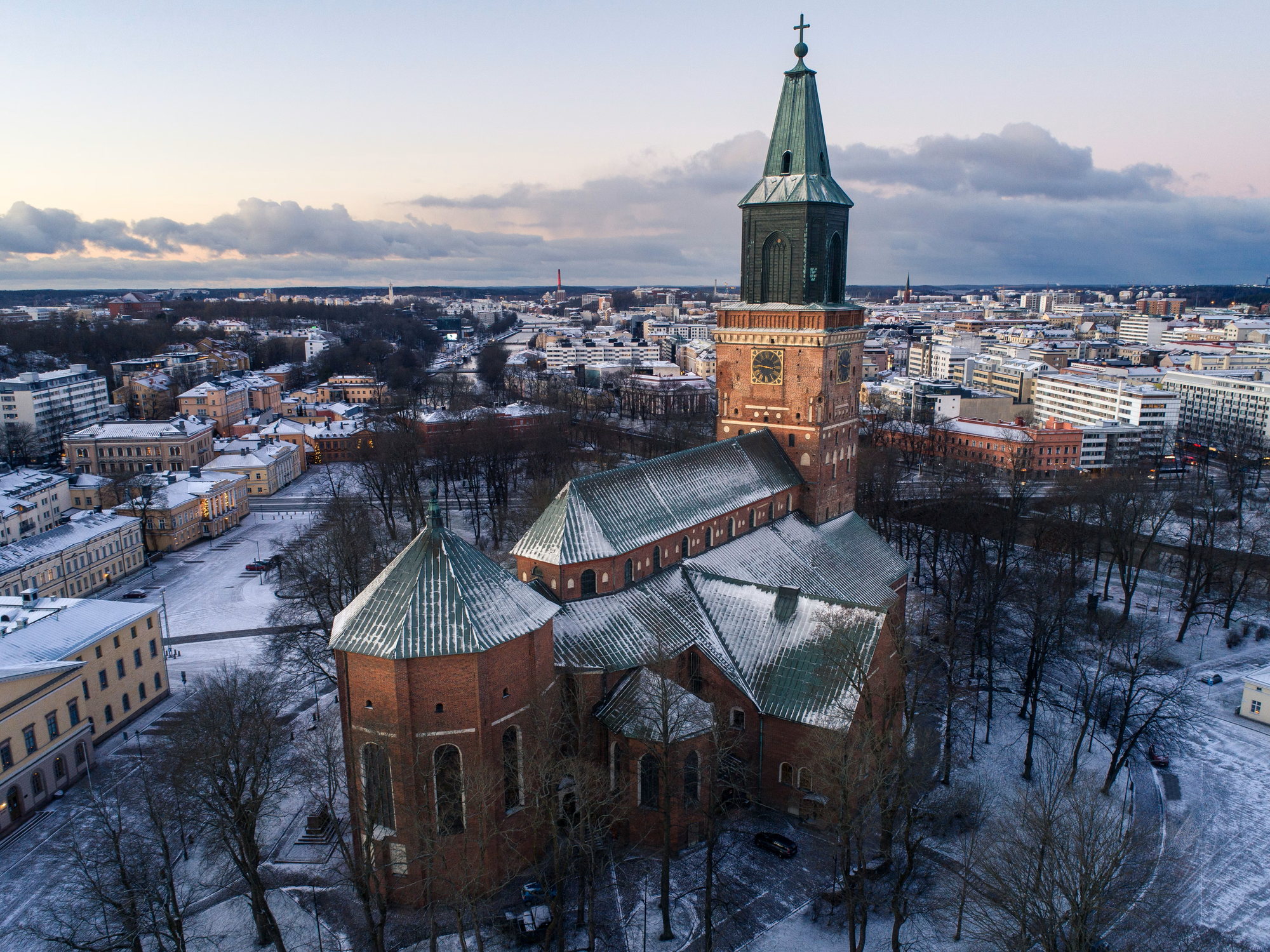
To animate the image, we uploaded into Runway and entered the following prompt to create a 10-second video.
"Cinematic drone footage of a historic stone church surrounded by trees, captured from an elevated aerial perspective. The camera performs a smooth, continuous orbit around the church, revealing architectural details—steeple, stained-glass windows, and weathered stone walls. Early morning soft light, gentle shadows, slight lens flare, realistic drone motion with stable gimbal-style stabilization. Crisp details, subtle breeze in surrounding trees, natural color grading, dramatic yet peaceful atmosphere."
Here's what this would look like in Runway. Then hit the Generate button and let Runway do its thing.
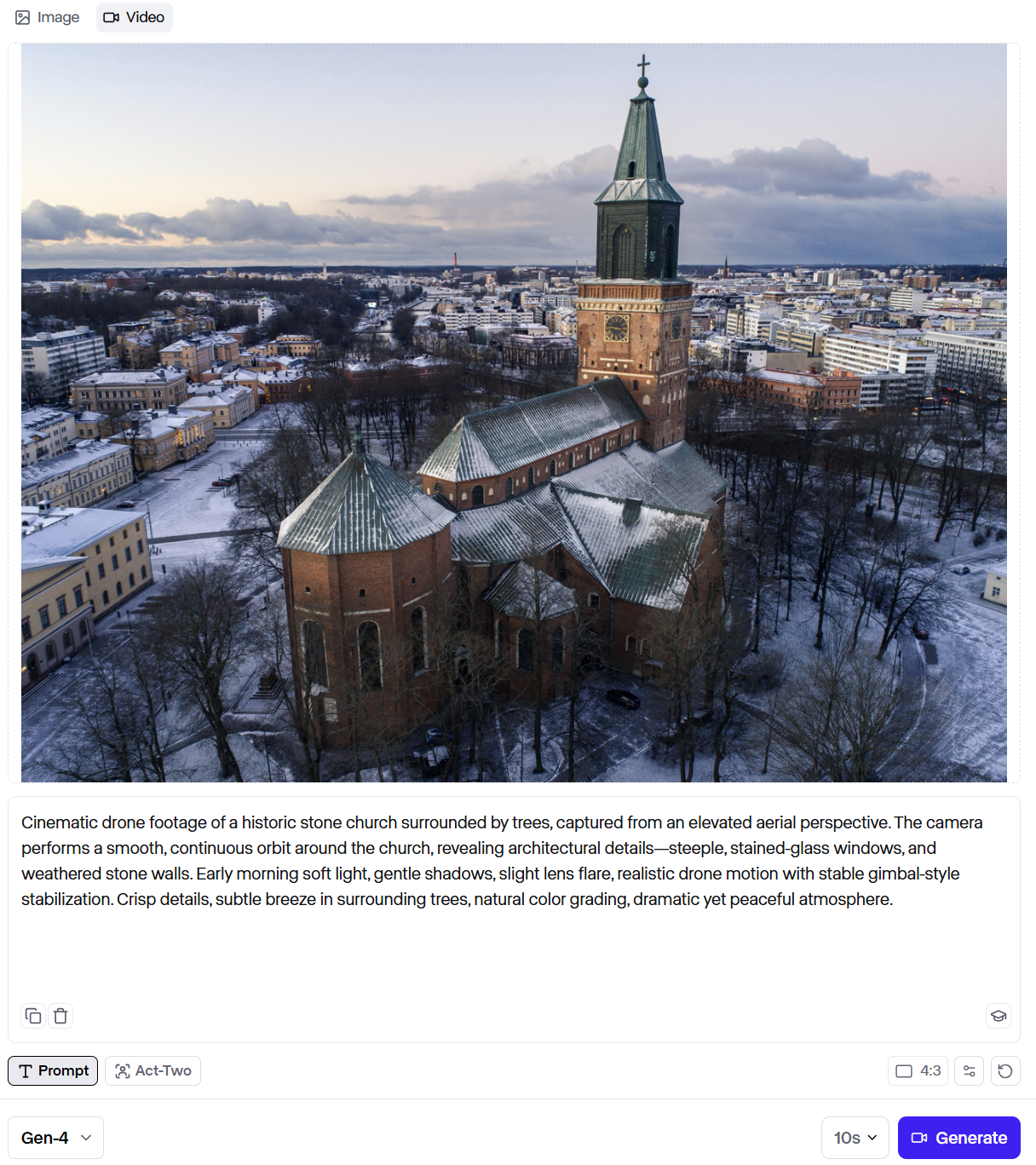
Assuming the clip comes out the way you want it to, you can use this as more specific context for Susanna Tapani – giving the viewers some context as to where she comes from. Using the above prompt, Runway did a great job of a high pan-around shot of the church and surrounding area.
Join Data Punk Media today and explore the different data stories we publish.
Creating Custom Music Using Suno
If you've ever taken a film editing or videography course, you'll understand the importance of music. Music sets the mood for your video. And many creators underestimate the power of music when creating their reels. Music (and sound) is a key ingredient when building your mini-masterpiece.
You can source music that is pre-created using Artlist – we do this a lot. But, for this demo, we're going to create our own hockey tune that we'll create specifically for our ode to Susanna. It's actually a ton of fun to create your own soundtrack, and Suno is pretty decent.
Our input was pretty simple: fun dance beat for a hockey game. The result was a song called "Ice on Fire" with a decent beat, catchy lyrics and generally a fun vibe.
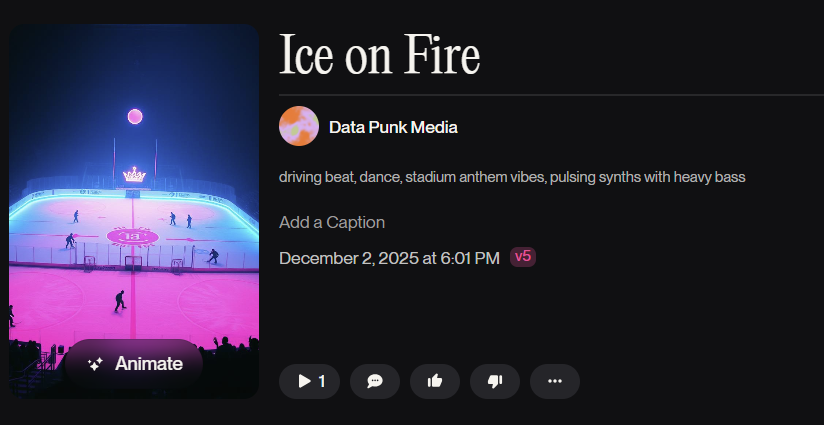
When we're creating reels that are sports related, we generally try and source or create music with high energy, percussive beats and electronic or orchestral beat. If it's really short, then we opt for no vocals.
Here are a couple of prompts to try with Suno:
Example 1
"Epic electronic sports anthem, fast tempo 135 bpm, driving drums, rising synths, energetic bass, dramatic stingers, modern highlight-reel style, uplifting and powerful."
Example 2
"Hybrid orchestral sports soundtrack, pumping drums, icy textures, Boston city energy, cinematic build, emotional and heroic tone."
Ideally, you want to synchronize your music with the rising beat or rhythm in your reel, for example:
- A strong intro beat (0–2 seconds)
- A rising build (2–5 seconds)
- A drop or climax (5–10 seconds)
- A natural end point around 12–15 seconds
Once you generate a few tracks, download the one you want to use. And note that you can trim and cut what part of the song you use when stitching it all together in Adobe.
Pulling it all Together using Adobe
Now that you have the ingredients, it's time to start building the beats or segments of your reel. We like to use "compositions" to create these segments, and then integrate them into a reel using Premiere Pro.
A composition is the central workspace where you build, arrange, animate, layer, and preview your video project. The result of a composition is a short video file that has some level of animation in it. Think of it as the container for your final motion design or video sequence.
To create a composition, open Adobe After Effects, and click Composition and New Composition. This opens the Composition Settings dialog, where you can configure your composition. Give your composition a name, and then click OK.
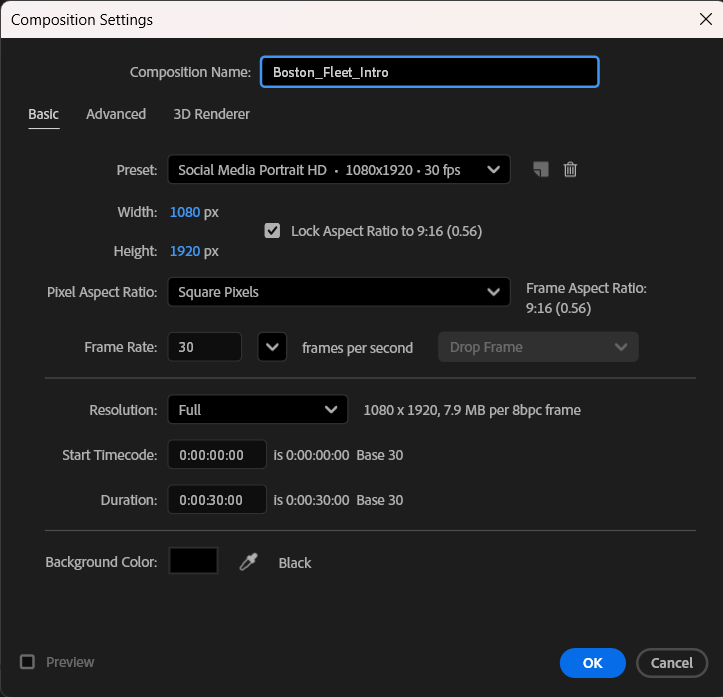
After Effects lets you combine your b-roll, AI animation, motion graphics, and music into one cohesive sequence.
The workflow to create the compositions, build them, and then import them into Premiere Pro is as follows:
- Create a new Adobe After Effects project
- Add folders for each of the assets (e.g., Images, Videos, etc.)
- Create a composition for each segment
- Add the elements to the composition as layers
- Render each composition when complete
- Import the rendered files into Premiere Pro
- Produce the final video using the rendered compositions
This may sound a bit complicated, but once you've done this a few times you'll a) likely have a baseline After Effects project template you work from and b) will have a pattern of creating your compositions.
We'll create one composition for each segment in our storyline, so:
- Opening scene of Turku, Finland and Boston, Massachusetts.
- Introduction of Boston Fleet (and how they're doing in the standings).
- Spice it up with excited fan.
- Focus on Susanna Tapani and her point production for the season (so far).
- Ask the question of can Susanna continue her streak
And once you added all of the rendered sequences in Premiere Pro, you organize them, add the music and sound track, add any effects and transitions, and complete the build by exporting the video.
Summary
In this newsletter, we walked through how to create a simple reel using AI. We focused on Artlist for footage, Midjourney for images, Runway for animating images, and Suno for music. We then pulled it all together using Adobe After Effects and Premiere Pro.
The key takeaway should be more about the workflow. If you set up a similar process that builds from a baseline template, you'll be able to speed up your content production and focus on quality stories.